Skull And Bones is world leading independent COMPANY»
Welcome to Most Wanted Downloads. If you want a best games or share them with US. Use Following: Share Games | Get Free Games
Showing posts with label How to. Show all posts

Saturday, June 7, 2008

How to mount an image using Daemon tools

How to mount an image using Daemon tools
In common use, an "ISO" file is a single file that contains the complete image of a disc. Such files are often used when transferring CD-ROM images over the Internet.


In this guide I will be showing you how to mount a ".ISO" image in a virtual drive to play/watch it.

First thing you need to do is download DAEMON Tools if you haven't already. You can download it here:


Once you have installed and started DAEMON tools, you should now see a "lightning bolt" icon (green) next to your PC clock. [Screen Shot Below]


DAEMON Tools supports the following image files:


* cue/bin


* iso


* ccd (CloneCD)


* bwt (Blindwrite)


* mds (Media Descriptor File)


* cdi (Discjuggler)


* nrg (Nero)


* pdi (Instant CD/DVD)


* b5t (BlindWrite 5)


Go ahead and right click that icon and then left click "VIRTUAL CD/DVD-ROM" , then left click "Set number of devices...", then decide on how many virtual drives you wish to have. For this tutorial I only choose "1 drive" (red). [Screen Shot Below]


After that, go ahead and right click that "lightning bolt" icon again, left click "VIRTUAL CD/DVD-ROM" again. Then left click "Device 0: [*Letter*] No media", then left click "Mount image" (blue). [Screen Shot Below]

Then on the screen that pops up, navigate to where your ISO file is to mount it to the virtual drive. When you find it, click it once then click the "Open" button (purple). [Screen Shot Below]


After clicking the "Open" button, it will act just like you put a DVD in. It will ask you what you want windows to do. Either pick a task for it to follow or cancel it and do your own thing if the program you want to use is not listed there. [Screen Shot Below]


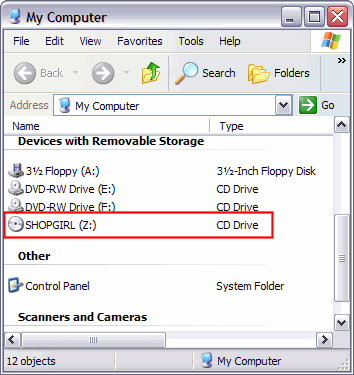
Ok your finished with loading the image.Now if you go to "My Computer", you will see a "extra" drive listed there (red). That is the "virtual drive" created by DAEMON Tools. [Screen Shot Below]


To remove it, right click that icon and then left click "VIRTUAL CD/DVD-ROM" , then left click "Set number of devices...", then click "Disable".

POOF! Its gone!And thats how to mount an image using daemon tool!

Enjoy

Read more..>>

How to use a joystick or gamepad with any game

Definitely one of my "cant Live without" progams

This software is a keyboard emulator for joysticks.
It converts joystick input into keyboard input (and mouse input).


Use it when you want to control an application with joysticks that doesn't support joystick input. If you wish, you can control even Word, Excel, etc. with joysticks!

Features:

* Configuration for maximum 16 joysticks.(6 axes, 2 POV switches and 32 buttons for each joystick)

* Multiple configuration filesYou can make many configuration files and choose it at any time.

* Support for many useful features...o Automatic shooting of buttonso Mouse emulation (including wheel input)o "Adjust mouse movements" functionWhen it's pressed, mouse movement(or wheel rotation) becomes faster (or slower).

* "Switch to the other configuration file" functionYou can switch to and activate the other configuration file with the button which is assigned to this function.

* "Use the setting of other joystick number temporarily" function(Something like "shift" command of SNESKey. For example, you may usually use joystick1 for keyboard emulation, but during this button being pressed, joystick3's configuration (that emulates mouse or something) will temporarily be used. Note that joystick3 is not a real joystick, it's a virtual device to .)

Download:

CLICK HERE TO DOWNLOAD JOYTOKEY.RAR - RAPIDSHARE SERVER

Read more..>>

How to download from Megaupload?

Download from Megaupload.com
1. Enter the security words in the textbox, in this case “MWD”, and click the “Download” button.
2. Wait untill the counter reaches zero.
And Click the “Click here to download” button, your download starts shotly after.
STEP TO STEP GUIDE AND VIDEO = "BELOW"
Hacking Megaupload.COM

Read more..>>